
Submit your POM solutions
- You do not have to submit all solutions at once. You can submit some solutions and return to submit others at any time before the deadline. You can submit your solutions in any order.
- If you'd like to resubmit your solution, simply upload it one more time. Only your most recent submission for each problem or project will be graded.
- Problems (5pt and 10pt): you must submit a PDF file outlining your solution. Videos are optional. However, submitting a video for a problem will add a 20% bonus to the score earned for that problem.
- Computer Science (CS) problems (5pt and 10pt): you may be asked to submit code in addition to the PDF file.
- Projects (30pt): You must submit a PDF file and a Video explaining your solution.
Preparing a PDF file (and a Code file for CS problems):
- Submit your solution for each problem or project as a single PDF file. If you have several PDF files, use any software to combine them into one file.
- You may type your solution or handwrite it and scan it as a PDF.
- For Computer Science problems: the only allowed languages are Python 3 and Java, so please upload a .py or .java file for those problems by clicking the "Add another file" button in the submission form.
You should see the message "For security reasons, your upload has been renamed to..." for Python files.
Preparing a Video:
- Videos must be at most 3 minutes long for 5pt/10pt problems, and at most 6 minutes long for projects.
- Your solution must be narrated, but you do not need to show your face.
- Acceptable formats include:
- Screen-sharing a PowerPoint/slides presentation or drawing app (e.g. Microsoft Paint), and narrating.
- Recording yourself at a whiteboard, paper, or easel and narrating (you can write the contents of the whiteboard/paper/easel in advance).
- Speaking directly to the camera
- Upload your video to Google Drive, YouTube, Dropbox, or another hosting service and submit it as a link.
- If we cannot access your video through the link you provided, your solution will not be awarded any points.
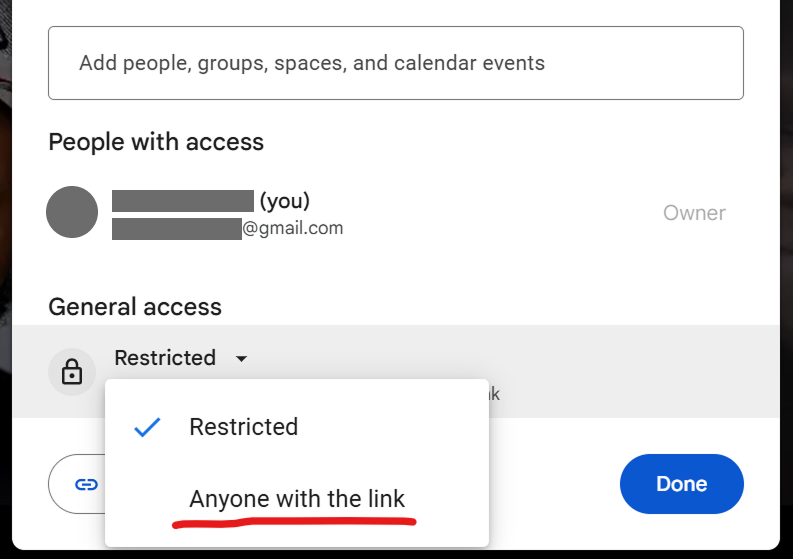
Upload the video to your Google Drive and make it accessible to "Anyone with the link":
1. In Google Drive, double-click the video file to open it.
2. Click the "Share" button in the upper-right corner; a small window will appear.
3. Under General access, change the setting from "Restricted" to "Anyone with the link".
4. Click Done
Image
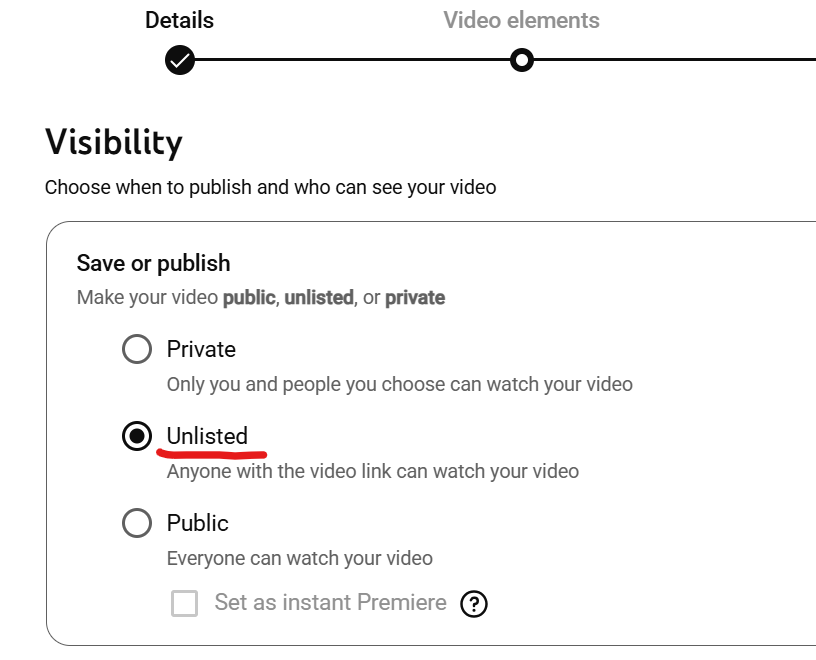
1. Upload the video to your YouTube account.
2. After uploading, under Visibility, select Unlisted (Anyone with the link can view).
Image
in the YouTube app on mobile:
Image
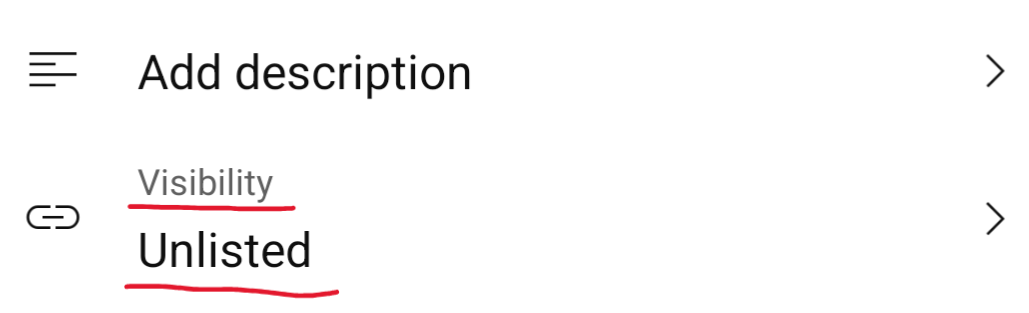
If you have already uploaded the video and forgot to change the visibility, you can do the following:
1. Go to https://studio.youtube.com/ and open the Content section on desktop, or tap Edit video on mobile
2. Under Visibility, change the setting from Private to Unlisted.